Skip to content



Only approximately 45% of mobile WordPress sites passed all three Core Web Vitals in HTTP Archive’s 2025 performance measurements. That means most sites aren’t slow because they missed one clever setting. They’re slow because nobody measured real mobile visitors by template, then fixed the server, images, and scripts in the right order. Treat a WordPress speed up site project as a revenue decision. Pass on the pages that earn money first, and stop chasing a perfect lab score on pages nobody buys from.
Table of Contents
- The WordPress Speed Fixes Worth Doing First
- How to Baseline Mobile Field Data by Template
- When Hosting Beats Another Cache Plugin
- Images Critical CSS and Database Tuning
- Theme and Plugin Cuts That Protect INP
- Prove the Gain Before the Next Build
The WordPress Speed Fixes Worth Doing First
A page is good only when the 75th percentile of real visits hits Largest Contentful Paint at 2.5 seconds or less, Interaction to Next Paint at 200 milliseconds or less, and Cumulative Layout Shift at 0.1 or less. Those three bars cover loading, responsiveness, and visual stability. If your product page passes on desktop in your office but fails for mobile shoppers, it fails.
Don’t start by installing five optimization plugins in one afternoon. You’ll break something, you won’t know which change helped, and you’ll usually improve a synthetic score while field data stays put. Work one row at a time, warm the cache, recheck, then move on.
Priority Order for a WordPress Speed-Up
| Order | Change | Metric it moves | Start here when |
|---|---|---|---|
| 1 | 28-day mobile field baseline by template | LCP, INP, and CLS at the 75th percentile | No change has been measured on real users yet |
| 2 | Host, full-page and object cache, and CDN | TTFB and LCP | Cache is already on and TTFB is still poor, especially far from the origin |
| 3 | Right-sized WebP or AVIF heroes, lazy-load below the fold | LCP | The hero image or banner is the LCP element |
| 4 | Critical CSS inlined, other CSS and JS deferred | LCP and INP | The waterfall shows render-blocking styles or scripts |
| 5 | Cut heavy plugins and delay third-party tags | INP | Interaction traces show long tasks from tags or plugins |
| 6 | PHP, object cache, and query cleanup on dynamic URLs | TTFB on uncached requests | Cart, account, search, or checkout stays slow after page cache |
Notice what this order does. It puts server response before cosmetics. If time to first byte is poor, the browser can’t even start on your hero image, fonts, or CSS. A minify toggle won’t rescue a slow origin. It also puts images before script surgery on most templates, because the hero is the LCP element on a typical home, category, and product page. On a blog post, the LCP element is often a headline blocked by CSS and fonts, so row four matters more there.
Finish one row, warm the cache, and recheck field data before starting the next. A stack of simultaneous changes gives you no cause and effect.
Use the table as a stop rule too. If row two shows cached HTML is fast and your LCP element is a massive hero, don’t buy a bigger server. Fix the image. If row six is your problem, don’t spend another week deferring JavaScript on the homepage while checkout crawls. For a broader walkthrough of delivery, caching layers, and asset handling you can improve your website’s loading speed with general techniques, but on WordPress you still need this template-level order. Generic advice doesn’t tell you whether your bottleneck is the origin, the theme, or a plugin loading on every URL.
Prioritize mobile templates and revenue-critical pages. That means product or service pages, landing pages that paid media sends traffic to, cart and checkout, and lead forms. Your About page can wait. Theme complexity, plugins, third-party scripts, unoptimized images, hosting configuration, caching, and database overhead all hit field performance, so installing WordPress was never the finish line. You’re not done when a tool turns green. You’re done when real mobile visitors on money pages clear the three bars.
How to Baseline Mobile Field Data by Template
Lighthouse is a diagnostic tool, not a verdict. It runs a synthetic test under set conditions. Google judges Core Web Vitals on real visitors, so your baseline has to come from field data, grouped by template and device.
The four-step flow below gives you the structure before you touch a setting.
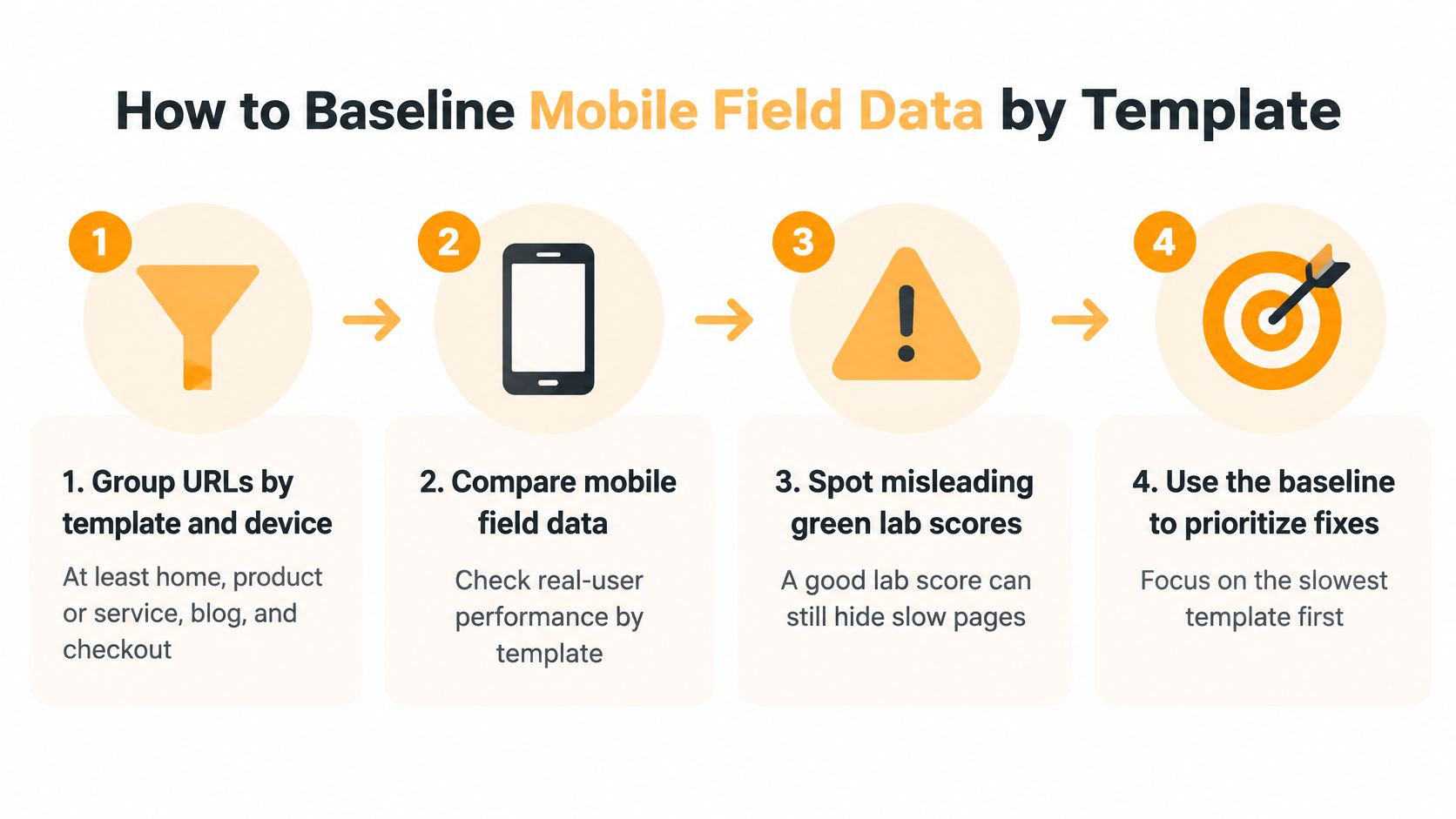
The Four Measurement Steps
- Group URLs by template and device: In Google Search Console, separate at least home, product or service, blog, and checkout or lead form. Don’t average them. A fast blog can hide a broken product template.
- Pull a 28-day baseline: Record mobile and desktop LCP, INP, and CLS separately, plus TTFB where your host or real-user monitoring tool exposes it. Per web.dev’s guide to defining Core Web Vitals thresholds, a page passes only when the 75th percentile reaches LCP ≤2.5 seconds, INP ≤200 milliseconds, and CLS ≤0.1, because that percentile represents the experience of at least 75% of visits.
- Reproduce the worst template: Run a browser performance trace on the slowest mobile template. Note server timing, render-blocking CSS and JavaScript, the LCP image, third-party scripts, slow database queries, and cache misses.
- Change one layer, then recheck: Warm the cache, let traffic normalize, and compare the lab trace against the next field window. Pair this with a proper audit cadence, the kind covered in a technical SEO audit checklist for site owners, so speed fixes don’t drift apart from crawl and indexation checks.
Low-traffic sites often have no CrUX data for individual URLs. In that case, add a lightweight RUM script, such as the web-vitals JavaScript library sending events to your analytics, and read the 75th percentile by template there. Don’t substitute a handful of PageSpeed runs and call it field data. It’s also worth keeping uptime separate from speed in your head. A page can be up and still unusably slow, so explore uptime monitoring basics for availability alerting, then use field data for experience quality.
Two traps account for most false victories. First, a desktop Lighthouse win while mobile field data is still over the line. Desktop tests use faster CPUs and connections, so they flatter heavy themes. Second, fixing LCP or CLS while a JavaScript-heavy plugin keeps INP poor. The page paints quickly, then ignores taps.
CrUX is also a rolling 28-day window. A test URL can look fixed today while most visitors in that window still experienced the old version. Be patient, and watch the trend by template rather than refreshing PageSpeed Insights hourly.
End this stage with one named target. Pick the single worst revenue template, for example mobile product pages in your main market, and make that the template every later fix is judged against.
When Hosting Beats Another Cache Plugin
Start with an uncomfortable number. Recent WordPress performance data reports that only about 32% of sites have good time to first byte, and caching plugins clustered within a relatively narrow range of good-TTFB results, according to the Core Web Vitals WordPress guide. Translation, swapping one cache plugin for another rarely beats a slow origin. If your server is the bottleneck, another plugin is decoration.
The comparison below frames the decision before you spend anything.
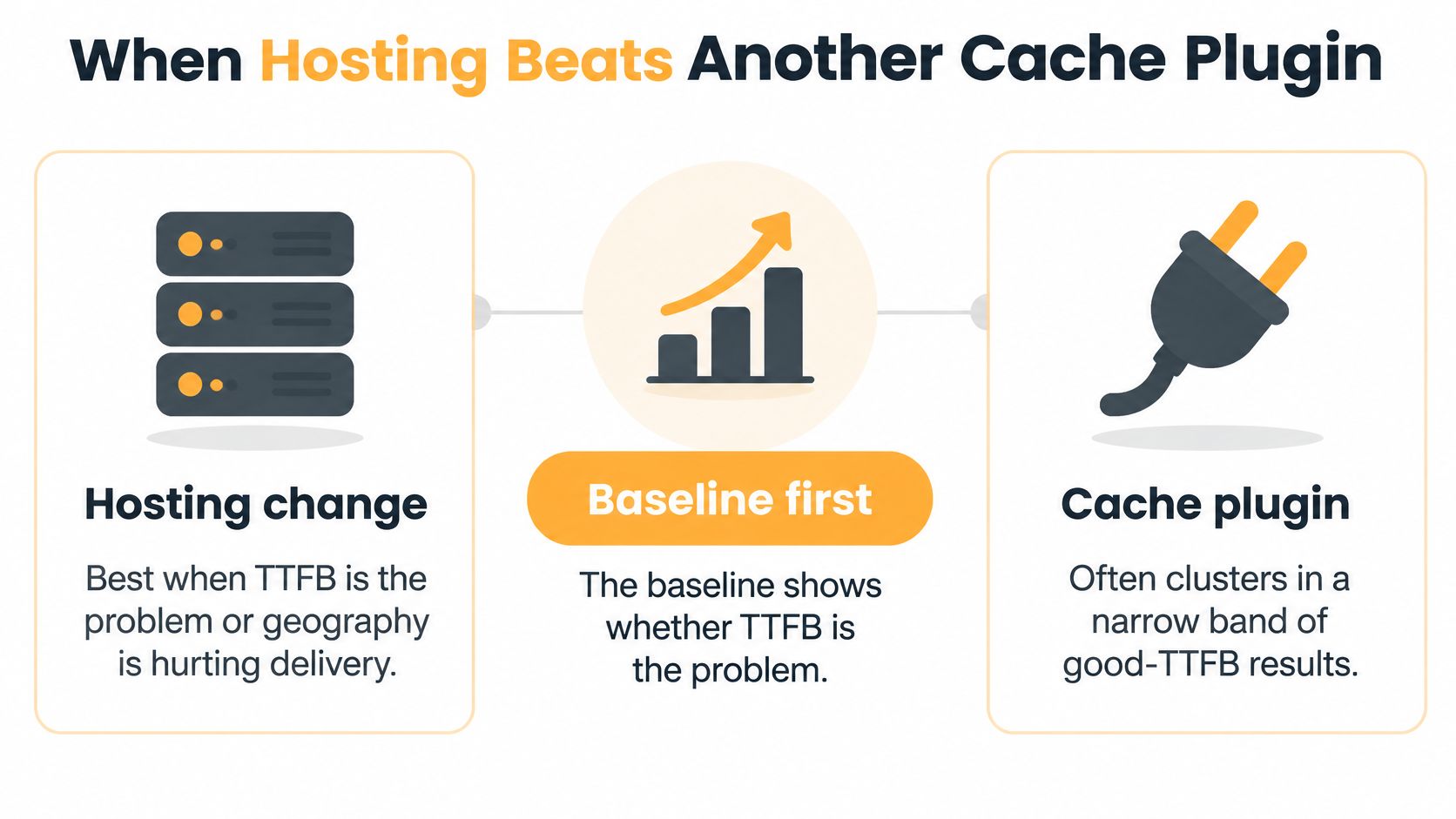
Match the Spend to Your Traffic Shape
For a brochure site or blog with mostly anonymous traffic, full-page cache plus a persistent object cache and a CDN close to your audience is the first spend. Nearly every visit can be served as static HTML. Judge it by cache-hit rate and edge TTFB versus origin TTFB. If hit rate is low, fix cache rules, cookies, and query strings that fragment the cache before you upgrade anything.
A store is different. Cart, account, search, personalization, and checkout bypass full-page cache by design. Those URLs depend on PHP 8.2 or newer, persistent object cache such as Redis, a tight query budget, and uncached TTFB in the regions that buy. A host that’s fast in Virginia and slow in Sydney is slow if your buyers are in Sydney.
Hosting, Cache, CDN, or a Theme Rebuild
| Option | Best when | Weak when | Prove it with |
|---|---|---|---|
| Managed host upgrade | Uncached TTFB is poor for buyers in key regions | HTML is already cached and the browser is still slow | Mobile TTFB at the 75th percentile |
| Full-page and object cache | Most visits are anonymous pages | Cart, account, search, checkout, or personalized pages | Cache-hit rate versus origin requests |
| CDN | Visitors are far from the origin server | Origin TTFB is bad and HTML is uncached | Edge time versus origin time |
| Theme rebuild | Host and cache are fast but theme CSS and JS dominate | The server is still the bottleneck | Field LCP after the origin is already fast |
Managed hosting isn’t automatically worth its premium. The label tells you nothing. Run comparative tests with your actual theme, plugins, and a checkout flow, from locations near your customers, and pay only when you see a real mobile TTFB drop for that workload and geography. Some managed platforms also restrict object cache or server config in ways that hurt dynamic stores, so test the uncached path, not just a cached homepage.
A theme rebuild comes last in this decision, not first. Rebuild when the origin is fast, cached HTML arrives quickly, and the waterfall is still dominated by theme CSS, JavaScript, fonts, and builder markup. Rebuilding on top of a slow server just gives you a prettier slow site.
Practical rule: If cached HTML is fast and uncached HTML isn’t, spend on the server. If both are fast and the page is still late, move to assets.
That one test settles most hosting versus plugin arguments. Measure a cached product page and an uncached search or cart request side by side. The gap tells you where your money goes.
Images Critical CSS and Database Tuning
Set a byte target before you start cutting. HTTP Archive reported that the median mobile home page grew from approximately 845 KB in 2015 to 2,362 KB in July 2025, while WordPress-specific measurements reported a median mobile page weight of approximately 2,894 KB and median mobile JavaScript of 638 KB, as summarized in SQ Magazine’s web design statistics. If your mobile product template is far heavier than that WordPress median, you don’t have a fine-tuning problem. You have a weight problem.
Median Mobile Page Weight Benchmarks
| Benchmark | Page weight | JavaScript | Period |
|---|---|---|---|
| Median mobile home page, all sites | 845 KB | Not reported for the 2015 figure | 2015 |
| Median mobile home page, all sites | 2,362 KB | 632 KB | July 2025 |
| Median mobile WordPress page | 2,894 KB | 638 KB | 2025 |
Work the slowest template in this numbered pass. The dashboard view below is the mindset to keep, bytes and the LCP element first, generic scores last.
- Fix the LCP element first: Find it in PageSpeed Insights or a trace. Serve it at the size it’s displayed, as WebP or AVIF, with width and height attributes set, fetchpriority=”high”, and no lazy loading. Lazy-loading your hero is a self-inflicted LCP delay. If your team shoots product photos on iPhones, ConvertHEICto’s HEIC to WebP guide covers getting those files into a web-ready format before upload.
- Right-size everything else: Generate responsive sizes with srcset, compress on upload with a tool like ShortPixel or Imagify, and lazy-load only images below the fold. Check that your theme isn’t serving the full-size original in a thumbnail slot.
- Inline critical CSS: Extract the CSS needed for the first screen, inline it, and load the remainder without blocking render. Tools in WP Rocket or Perfmatters can generate this per template, but verify on product and blog templates separately, since their first screens differ.
- Defer and prune JavaScript: Defer nonessential scripts, delay what isn’t needed until interaction, remove unused theme and plugin files per template, and stop shipping the same library twice from two plugins.
- Tune the uncached path: Upgrade PHP, enable persistent object cache, and use Query Monitor to find slow or repeated queries and bloated autoloaded options. Limit post revisions, clear expired transients, and fix plugins that query on every request.
Say a store serves a 2,400-pixel hero photo to phones that display it at 800 pixels. Replacing it with an 800-pixel WebP, preloaded with fetchpriority high, will usually move LCP more than every minify toggle in your cache plugin combined. That’s because you’ve cut both transfer time and decode work on a mid-range device.
Content pages fail differently. Say a blog’s LCP element is the headline, and it’s late because two web fonts and a render-blocking stylesheet arrive first. Compressing the article photo does almost nothing there. Self-host the font, use font-display swap, preload the one weight used in headings, and inline the critical CSS so text paints early.
Finish by rechecking transferred bytes and the LCP element timing on a throttled mobile trace. If total weight dropped but LCP didn’t, the LCP element is still waiting on the server, CSS, or a font. Keep tracing that chain instead of declaring victory on page weight alone.
Theme and Plugin Cuts That Protect INP
Open your plugin list and your tag manager. Not a new optimization plugin. INP problems almost always come from JavaScript you’ve chosen to load, and no minification setting makes a heavy script cheap on a mid-range phone.
Audit in This Order
Go template by template and ask what each script earns. Sliders, live chat, heatmaps, extra analytics, social pixels, popups, and page builder add-ons often load sitewide while only one template uses them. Disable or replace anything a template doesn’t need. For what remains, load conditionally. A reviews widget belongs on product pages, not on checkout. A booking widget belongs on the booking page, not in the footer of every blog post.
- Cut first: Cosmetic sliders, animation libraries, social feeds, and duplicate tracking that nobody reports on.
- Restrict by template: Chat, heatmaps, A/B testing scripts, and related-products widgets. Keep them off cart and checkout unless they directly support the transaction.
- Keep: Security, backups, cache, and your ecommerce or forms plugin. These stay, but they still get audited for front-end weight.
Themes deserve the same skepticism. A multipurpose theme that ships unused fonts, icon sets, sliders, and builder styles taxes every page. Prefer a block theme or a lean custom theme that loads assets only for blocks on the page. If you’re planning that kind of rebuild, scope it like a proper WordPress website design and development project with performance budgets per template, not as a visual refresh that inherits the old bloat.
Find Long Tasks and Layout Shifts
For INP, record a trace on a mid-range Android profile and tap what users tap. Open the mobile menu, expand filters, change a variation, submit the form. Long tasks after those interactions usually trace back to a menu script, a consent banner rewriting the page, a related-products carousel recalculating layout, or a plugin running heavy work on the main thread. Fix the specific handler or remove the feature. Deferring load-time scripts won’t fix a click handler that’s slow.
For CLS, reserve space before anything loads late. Set dimensions on images and embeds, give ad and promo slots fixed heights, and don’t inject banners above content after load. Cookie bars should overlay or sit at the bottom, not push the page down. Web fonts swapping in with different metrics also shift text, so match fallback font sizing where you can.
Remove one plugin or tag, clear caches, and retest INP on a mid-range phone before the next removal. Batch removals leave you guessing which one mattered.
Troubleshooting Pairs to Check
- Cache serving logged-in content: A misconfigured cache can show one user’s cart to everyone. Exclude cart, account, and checkout, and test logged out in a private window.
- Minify breaking checkout: If checkout JavaScript stops working after enabling combine or defer, exclude the payment and checkout scripts and retest a full transaction.
- WebP skipping the hero: Background images set in CSS and builder hero sections often bypass image conversion plugins. Check the actual LCP file format in the waterfall.
- CDN caching personalized HTML: If users see stale prices or someone else’s greeting, your CDN is caching pages it shouldn’t. Restrict HTML caching to anonymous traffic.
Close with a written keep list. Security, backups, cache, and the plugin that takes money or captures leads stay. Everything cosmetic must justify its milliseconds, template by template.
Prove the Gain Before the Next Build
You’ve changed the server, images, CSS, and plugins. Now prove it mattered to someone other than Lighthouse. Most WordPress speed projects get dishonest here, because a 90 to 100 PageSpeed Insights score is easy to screenshot and field data takes weeks.
Compare the same template before and after, mobile and desktop separately, after cache warming. Use 75th percentile LCP, INP, and CLS alongside the money metrics for that template, landing-page conversion rate, add-to-cart rate, checkout completion, or form submits, split by device, country, and campaign source. An OpenReplay analysis of WordPress performance put WordPress mobile Core Web Vitals pass rates at about 43.4% in one late-2025 analysis, which tells you generic checklists aren’t solving the field problem. Your proof has to be your own visitors.
Accept an unfashionable result when the data supports it. A lower synthetic score is commercially fine if real-user metrics and conversion improve, for example when you keep a chat tool on a high-value service page because it produces qualified leads and INP still passes. The reverse isn’t fine. A perfect lab score that hides a slow origin in the countries that buy from you is a vanity metric with a hosting bill.
Don’t let the homepage speak for the site. It can’t validate product pages, blog templates, or checkout flows, because each has different images, scripts, and cache behavior. This matters most for stores, where the gap between a cached landing page and an uncached checkout is exactly where revenue leaks, a pattern worth checking against your broader technical SEO work for ecommerce sites.
Decide the Next Build From the Split
- Uncached TTFB is the leftover problem: Spend on hosting, object cache, and query work. No theme rebuild fixes a slow checkout response.
- The origin is fast and assets still dominate: Rebuild the offending template with a lean theme approach and a per-template byte budget.
- Revenue pages already pass at the 75th percentile: Pause. Bank the gain, set up monthly field-data monitoring by template, and spend the next budget on conversion work instead of chasing milliseconds nobody feels.
That pause option matters. Performance work has diminishing returns, and a team that can’t stop optimizing will eventually break something that was converting. Set alert thresholds so you notice when a new plugin, campaign tag, or theme update pushes a template back over the line.
If your team can’t hold measurement, design, and WordPress tuning together in one pass, that’s a scoping problem, not a knowledge problem. One option is a performance and conversion engagement with Excellorix, which offers WordPress support covering caching, CDN delivery, and diagnosis of hosting, database, media, and third-party bottlenecks. Whatever route you choose, scope it to the templates missing the 75th percentile and the campaigns paying for that traffic. Anything broader is budget spent on pages that don’t repay it.
If your mobile product, landing, or checkout templates are missing Core Web Vitals at the 75th percentile, Excellorix can run a performance and conversion pass that ties hosting, caching, media, and plugin decisions to the campaigns and pages that produce revenue. Visit Excellorix to scope that work around your slowest revenue template first, so you fix what shoppers feel instead of polishing a lab score.