Skip to content



Your store says 42 orders yesterday. GA4 says 31 purchases. Google Ads claims 48 conversions, and your CRM has leads that never appear anywhere else. You’re being asked which number should drive tomorrow’s bid change, and none of them agree.
That gap usually isn’t a broken tag. It’s a missing decision about what counts, how it’s counted, and which system answers which question. Good conversion tracking in Google Analytics starts with that decision. I would write the event contract before I touched Google Tag Manager, because a clean tag firing on the wrong outcome still produces confident, wrong numbers for CAC, ROAS and budget calls.
Table of Contents
- Map Business Outcomes to GA4 Events
- Tag Ecommerce and Lead Events in Google Tag Manager
- How to Mark and Import Key Events in GA4
- Send Offline Conversions with the Measurement Protocol
- Why GA4, Google Ads and Shopify Totals Differ
- Consent Mode and When GA4 Models Conversions
- Use CAC ROAS and LTV Before You Change Bids
Map Business Outcomes to GA4 Events
Start with the purchase row, because it exposes the counting problem best. A purchase should use the Every rule, so three separate orders after one ad click count as three conversions. A lead should use One, so three form submissions from the same person don’t become three acquired customers.
That distinction came from the older model. In Universal Analytics, a goal could be counted only once per session while multiple ecommerce transactions could be counted in one session with unique transaction IDs, which the Google Ads goal and transaction guidance distinguishes as separate measurement approaches. GA4 records both as events, so the old separation no longer protects you. You have to recreate it deliberately through names, parameters and counting rules.
GA4 Conversion Events by Business Outcome
| Business outcome | GA4 event name | Counting rule | Key parameters | Import to Google Ads |
|---|---|---|---|---|
| Online purchase | purchase | Every | transaction_id, value, currency | Yes, for ROAS |
| Form submission on a lead site | generate_lead | One | value, lead_source | Yes, with caution |
| CRM-confirmed qualified lead | qualified_lead | One | lead_id, stage, value | Yes, preferred for B2B |
| Trial or account sign-up | sign_up | One | method, plan | Only if it predicts revenue |
| Booked consultation or call | schedule_call | One | lead_id, source | Reporting only |
Read the table as a bidding decision, not an inventory. purchase is safe to optimise toward when transaction_id, value and currency match the order system. generate_lead is weaker, because it treats a curious enquiry and a buyer with budget as equal unless you pass a value that reflects lead quality.
That’s why qualified_lead matters for professional services and B2B. It marks the later commercial milestone, such as a signed contract or paid subscription, after sales has confirmed the lead is real. sign_up belongs in bidding only if trial starts reliably predict paid revenue. If they don’t, keep it for reporting and don’t let an algorithm chase cheap trials.
Practical rule: If an event cannot be tied to revenue, pipeline value or a proven step toward either, don’t import it as a primary conversion.
Before importing anything, it’s worth checking whether your existing Ads conversions match these definitions, and AI-assisted audits of Google Ads conversions can help surface duplicate, misvalued or miscounted actions during that review. For every row, write down three things in plain language: what counts, what doesn’t, and who owns the definition when marketing and sales disagree. Without an owner, the definition drifts every time someone rebuilds a form or renames a CRM stage.
Tag Ecommerce and Lead Events in Google Tag Manager
Start in the data layer. Most GTM conversion failures aren’t trigger problems. The page never pushed clean values in the first place, so the tag faithfully sends undefined value, missing currency or the wrong order total.
The setup below shows where that clean data has to originate before any tag is built.
Push the Purchase from the Backend
On the order-confirmation page, push a purchase object containing transaction_id, value, currency and items. Use the backend order number as transaction_id, never a random value generated in the browser. A stable ID lets GA4 and Google Ads deduplicate a reload of the confirmation page. A random one turns every reload into a fresh sale.
Then build the GTM pieces in this order:
- Custom event trigger: Fire on the data layer event named purchase, not on pageview of a thank-you URL that shoppers can revisit from email.
- Data layer variables: Read each field from the pushed object instead of scraping prices or order numbers from the DOM, which breaks with the next theme update.
- GA4 event tag: Map those variables into the event parameters and confirm currency is a three-letter code, not a symbol.
On Shopify, confirm checkout passes the order ID and order total into the data layer. Don’t assume an app or default integration does it correctly. Place one real test order from a phone, because mobile checkout paths and payment redirects are where parameters most often disappear.
Fire Leads on Success, Not on Clicks
For lead forms, fire generate_lead on the successful submission callback or the thank-you event pushed by the form system. Don’t fire it on the button click. A click followed by a validation error, a failed captcha or an abandoned second step isn’t a lead, but click-based tags count it as one.
Add a once per session or first-fire exception so refreshing the thank-you page doesn’t send a second event. This matters most on a landing page built for Google Ads traffic, where inflated lead counts feed straight into bidding. We ship every website build with tracking, pixels and attribution wired in from day one, because retrofitting these checks after campaigns launch means weeks of spend optimised against bad signals.
Validate with GTM Preview and GA4 DebugView open together. I would require exactly one purchase event, with value and currency matching the test order to the cent, before publishing. Then repeat the full preview for generate_lead, including a deliberately failed submission to confirm it sends nothing. If the failed attempt fires the tag, the trigger is wrong, no matter how clean the successful test looked.
How to Mark and Import Key Events in GA4
Use a two-layer architecture. First instrument the action as an event, then classify it as a key event, and only then import it into Google Ads if you want campaigns optimising toward it. Skipping the middle layer is how reporting events become bidding signals.
The flow below summarises the sequence before the detailed checks.
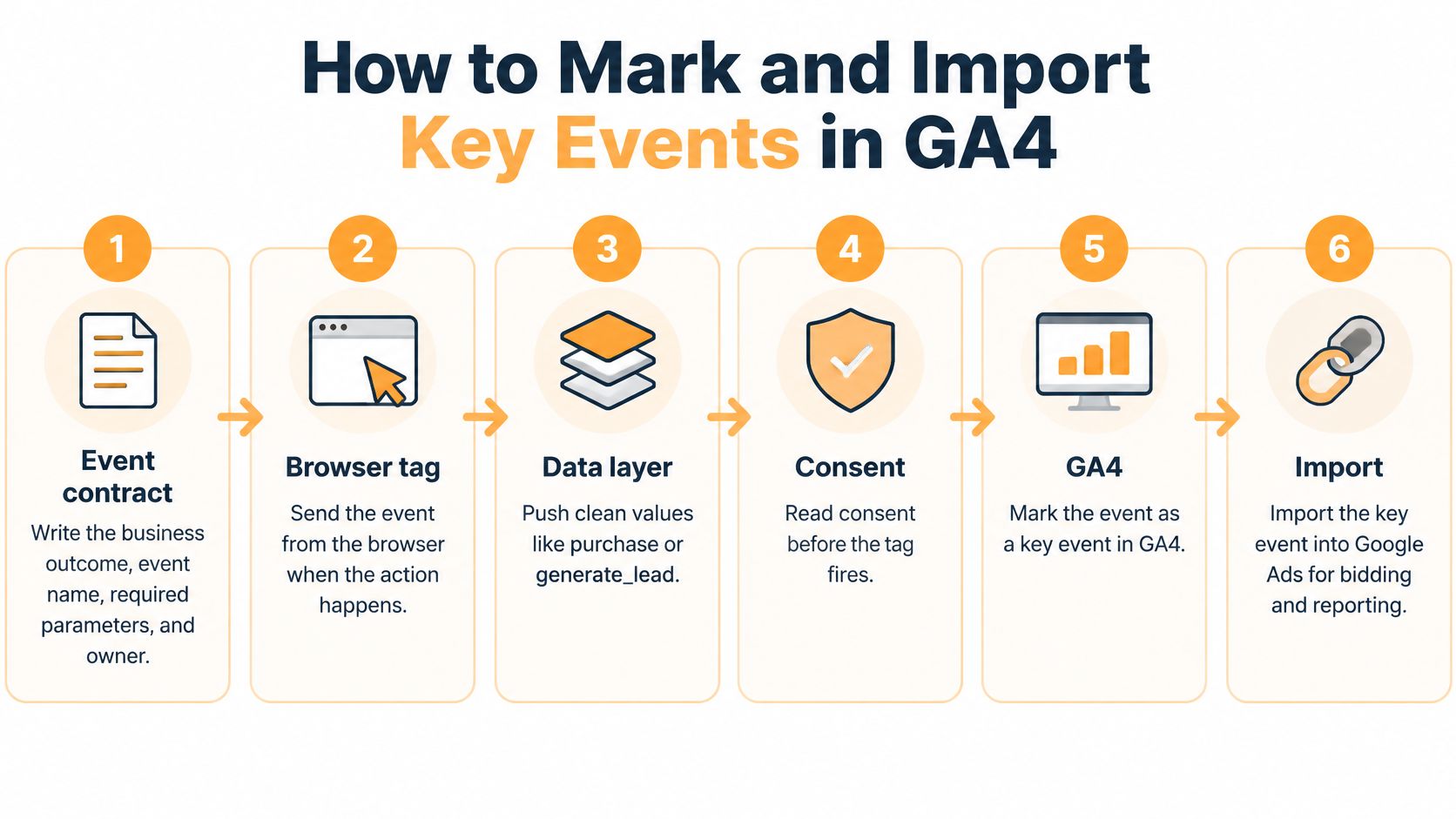
- Write the event contract. Name the business outcome, the event name such as purchase or generate_lead, required parameters and the definition owner. The common slip is letting the developer, media buyer and CRM admin each use a slightly different name.
- Implement with one consistent method. Send the event through Google Tag Manager, gtag.js or the server-side Measurement Protocol, using the identical name and parameter spelling everywhere. A typo like generate_leads creates a second, unmarked event nobody reports on.
- Validate in DebugView and real-time reports. The Google Analytics key event guidance frames key events as the actions you classify for conversion reporting after the underlying event exists, so check name, parameters, user identity, transaction ID, value and currency on a real test order and a real test lead first. Testing only on a staging domain that never fires the production tag is the classic false pass.
- Mark the validated event as a key event. This moves it into conversion reporting. It doesn’t fix a bad event, so never mark first and debug later.
- Link GA4 to Google Ads and import deliberately. Enable auto-tagging, link the accounts and import only events meant for bidding. Secondary actions can stay in GA4 for analysis without steering spend.
- Set counting rules on purpose. Every is generally appropriate for sales, while One is generally appropriate for leads, because multiple lead submissions from one ad click shouldn’t inflate acquisition results.
Reconcile Before You Touch Bids
For lead generation, I’d prioritise a downstream qualified lead or closed-won event over raw form submissions once volume allows. Treating every submission as equal trains bidding toward whichever audience fills in forms most cheaply, not whoever buys.
Compare GA4, CRM and Google Ads totals over a fixed test period before changing any bid. Attribution windows, consent choices, modeled data and counting settings create legitimate gaps, so you’re looking for unexplained gaps, not identical totals. A healthy result is specific: the test lead appears once in GA4, once in the CRM and once in Google Ads within the expected window, with the same lead ID in each place.
Send Offline Conversions with the Measurement Protocol
Some conversions never happen in a browser session. A salesperson closes a lead in the CRM next week. An invoice gets paid by bank transfer. The Measurement Protocol is how those outcomes reach GA4, as a server-side extension of browser tagging, not a replacement for it.
The Google Analytics Measurement Protocol developer documentation describes it for server-to-server and offline interactions, with up to 25 event items per request and a required name for each event. If you’re weighing where this sits against browser-only tagging, it helps to compare server-side and client-side tracking before rebuilding your whole stack around the server.
The Six-Step Workflow
- Generate a durable event ID for each conversion so retries don’t create duplicates.
- Retain the originating GA client or user identifier when consent allows it, captured at the original form submission or checkout.
- Capture the conversion in the backend or CRM with event name, timestamp, value, currency, transaction or lead ID and campaign identifiers.
- Send an HTTP POST to the GA4 endpoint with that payload.
- Validate in a staging property, checking payloads, authentication, timestamps and parameters before production.
- Compare received events against source records and monitor duplicate rate, missing identifiers, latency and error logs.
Where It Actually Breaks
The failure modes are mundane and costly. Events arrive without a usable client or user identifier, so GA4 can’t connect the offline close to the original visit and the conversion floats unattributed. Transaction IDs get reused across distinct orders, which makes real sales look like duplicates. Browser and server events fire for the same order without deduplication, doubling revenue. Someone passes an email address or phone number as a parameter, sending personally identifiable information that should never be there.
An offline event with no identifier is reporting decoration. It proves something happened, but it can’t improve attribution or bidding.
For Shopify, professional-services, healthcare and industrial accounts, run a daily reconciliation view across GA4 key events, CRM-qualified outcomes, backend orders and ad-platform conversions. Investigate gaps by event ID, date, consent state and attribution source. Aggregate totals hide the cause. A row-level check shows you whether five missing conversions share one broken identifier or five separate problems.
Why GA4, Google Ads and Shopify Totals Differ
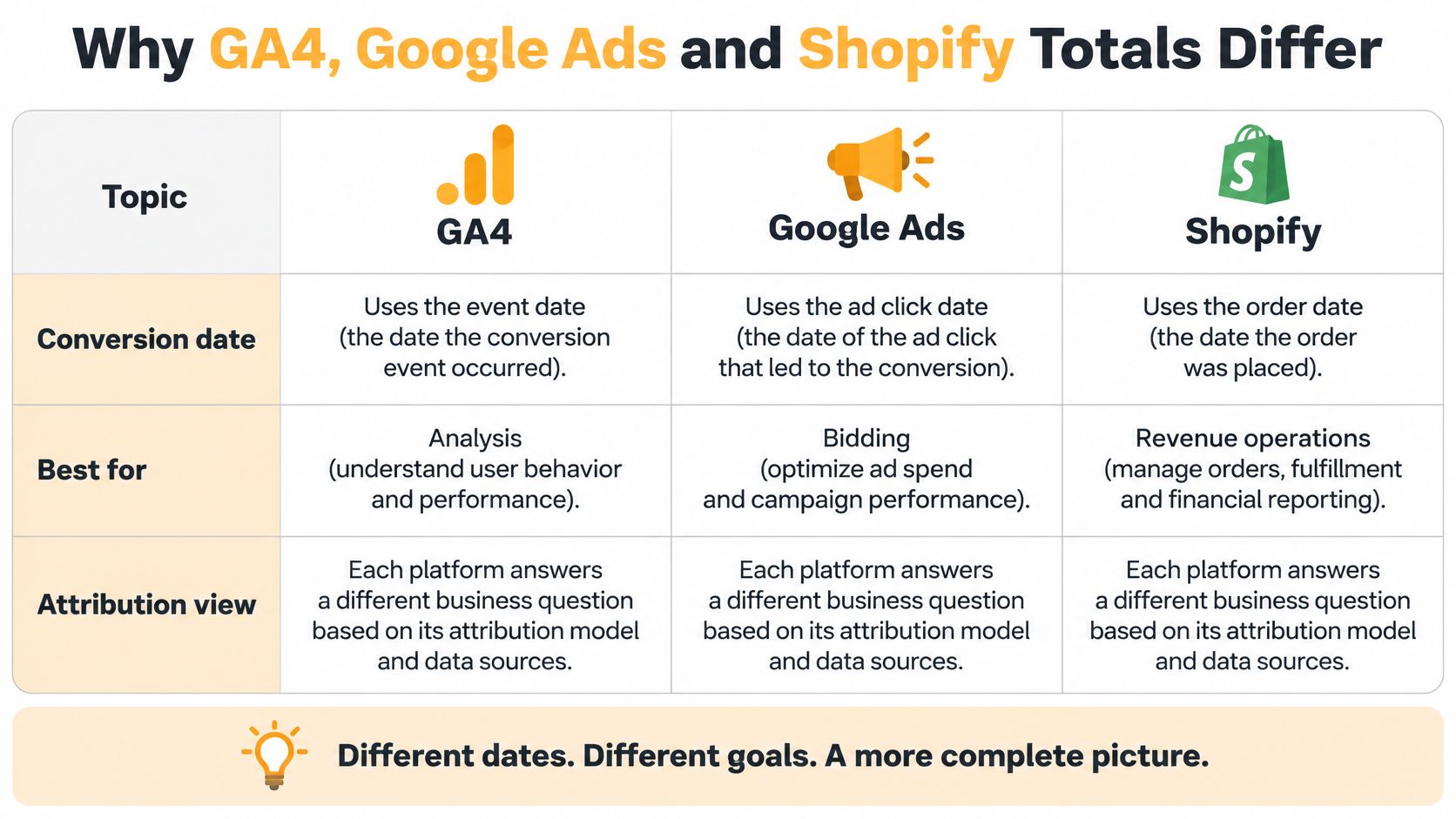
These platforms measure different outcomes and use different reporting rules, so matching totals is the wrong goal. Decide what each number is meant to answer before treating the gap as a tracking failure.
| Platform | Counts conversions by | Best used for | Expected gap |
|---|---|---|---|
| GA4 | Event date within the session | Behavioural paths and assisted channels | Missing visits when consent is delayed |
| Google Ads | Ad click date | Bidding within its own attribution window | Totals differ from transaction-date reports |
| Shopify or CRM | Order or close date | Revenue reconciliation | Needs stable order and lead IDs |
| Meta Ads | Platform attribution window | Creative and audience optimisation | Overlaps with GA4 last-click credit |
The comparison table of GA4, Google Ads and Shopify conversion data shows how their date bases and purposes differ.
Click Date Versus Transaction Date
Google Ads attributes conversions to the date of the ad click, while commerce systems may report them on the transaction date. The Google Ads data-driven attribution documentation describes its attribution and reporting model. If a shopper clicks on Monday and buys on Friday, Google Ads reports the conversion against Monday and Shopify against Friday. Both dates can be correct. Comparing same-day totals during a sale can therefore create a large gap without indicating a broken setup.
Cross-domain gaps are different: they can often be fixed through configuration. List every domain that sends users to checkout, payment or a booking tool in GA4 cross-domain settings. Confirm those domains are not treated as referral exclusions, then test a complete journey. If a domain is missing, GA4 can split one journey into two sessions and credit the payment provider as the referral source.
Consent can also shift channel attribution. If someone arrives without consent and accepts tracking later, GA4 may record a new session, with the later visit appearing as Direct traffic. Channel rankings can shift, branded search may look weaker, and channel-level CAC can become misleading even when total orders are unchanged.
A second measurement source helps identify gaps in browser-side data. A 2025 Seresa analysis of WooCommerce reporting reported that GA4 failed to record 29% of visits and 45% of pageviews in a 48-day comparison with a server-side measurement baseline. Those figures describe one store, not a universal rate. They illustrate why GA4 should not be treated as the revenue ledger.
Use a Reconciliation Protocol
- One primary outcome: Define the event that represents success before comparing platforms.
- Preserved order IDs: Match records by ID, not by daily totals.
- Separate date bases: Show click-date and purchase-date reports side by side, with clear labels.
- Documented windows: Record each platform’s attribution window where the team can reference it.
- Trend comparison: Check whether platforms move together over time instead of forcing their totals to match.
Use each source for the question it answers best: Shopify or the CRM for revenue, GA4 for behaviour, and each ad platform for optimisation within its own attribution rules. This distinction also helps teams using PPC management across Google Ads and social media keep bidding decisions separate from revenue reconciliation.
Consent Mode and When GA4 Models Conversions
Consent Mode is usually installed as a compliance task and forgotten. It is, in fact, a measurement design choice, because the mode you pick decides how much conversion data exists at all.
| Consent setup | Before consent | Modeled conversions |
|---|---|---|
| Basic Consent Mode | Tags blocked until consent is granted | Limited and depends on traffic volume |
| Advanced Consent Mode | Cookieless pings sent before consent | Available once thresholds are met |
| Advanced with October 2024 backend update | Pre-consent events enriched after a valid consent update | Available once thresholds are met, with better session context |
With Basic Consent Mode, tags don’t fire until consent is granted, so conversions from non-consenting users go unrecorded. With Advanced Consent Mode, cookieless pings are sent before consent, giving Google the signal it needs for modeling, a distinction covered in the Bounteous Consent Mode mistakes guide. That guide’s context also covers the October 2024 backend improvements that can retroactively apply session and identity context to pre-consent events when a valid consent update is received.
Here’s the part smaller businesses miss. Modeling depends on sufficient consenting and non-consenting traffic, and smaller properties may receive no modeled behavioural data at all. If your traffic sits below Google’s thresholds, the gap won’t close on its own, and waiting for modeled numbers to rescue a report is a plan that fails.
Run the Three-Number Check
Put three numbers side by side by country, device and consent state:
- CRM or Shopify orders: What the business sold.
- Observed GA4 conversions: What GA4 directly measured.
- Modeled or platform-reported conversions: What Google estimates or the ad platform claims.
Say orders hold steady for a month while observed GA4 conversions fall sharply, but only in one country after a banner change. That’s probably consent-related undercounting, not a conversion-rate decline. Cutting bids in that country would punish a healthy market for a measurement change.
Report modeled conversions separately from observed ones, always labelled. Mixing them into one trend line makes last quarter and this quarter incomparable the moment modeling switches on or off. I wouldn’t change bids on modeled numbers alone when volume is too low for modeling to be reliable.
Use CAC ROAS and LTV Before You Change Bids
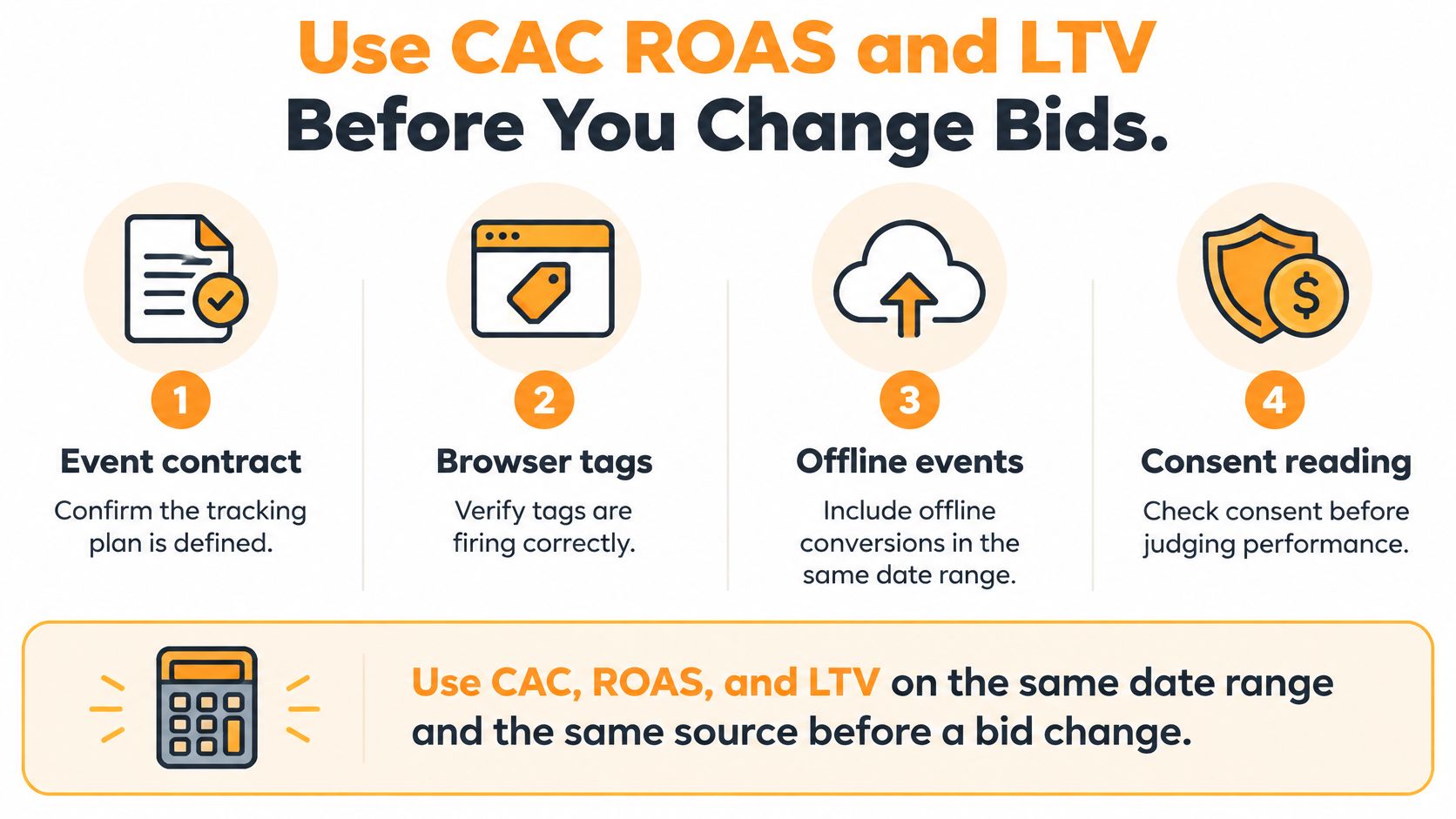
Treat every bid change as a go or no-go decision. It gets a yes only after the event contract, browser tags, offline events and consent reading are in place and stable.
The checklist below is the gate I would apply before any budget moves.
Three Formulas, One Date Range
Run all three on the same date range and the same primary conversion. Mixing a click-date ROAS with a transaction-date CAC produces a number nobody can act on.
- Cost per acquisition: Ad spend divided by new customers, not sessions, form starts or raw leads.
- Return on ad spend: Conversion value divided by ad spend, using the value and currency sent with purchase or the qualified-lead event.
- Lifetime value: The gross profit expected after the first order. For a lead business, multiply qualified leads by close rate and average contract value before ranking channels.
If you need a worked method for the third one, you can calculate ecommerce customer lifetime value and then feed that figure back into how much a first conversion is worth bidding for. Viewing all three together in one marketing analytics dashboard stops a channel that looks cheap on CAC but terrible on LTV from winning budget it doesn’t deserve.
We measure PPC success mainly by cost per lead, cost per acquisition, return on ad spend and conversion rates, not clicks and impressions as primary indicators. When we take over underperforming campaigns, we start with a full audit of campaign structure, tracking setup, targeting, landing pages and messaging before making changes. That order matters, because most “bidding problems” turn out to be definition problems.
Prefer cost per qualified lead over raw generate_lead volume when sales close in a CRM. Keep modeled conversions out of these formulas until your property receives modeled data. Change bids only when the primary conversion is stable across two comparable weeks and the accepted gap versus Shopify or the CRM is written down.
If revenue is flat in the store and only GA4 falls, fix tracking before you lower bids.
Lock one primary conversion, one counting rule and one reporting date basis. Then review bids against CAC, ROAS and LTV together, never in isolation.
If your GA4, Google Ads and store numbers still don’t reconcile, Excellorix can audit your event contract, GTM setup, offline imports and consent configuration, then rebuild conversion tracking so bids run on outcomes your CRM and bank account agree with. Our free ecommerce audit reviews your acquisition channels, conversion performance, retention setup and store experience, then maps the biggest revenue opportunities into a growth plan. Visit Excellorix to start with an audit before your next bid change.