 Skip to content


You click Update, expect a quick refresh, and instead see a stark screen saying your WordPress site is briefly unavailable. Your first thought is usually, “Did I break something?” Often, the answer is no. WordPress may be using maintenance mode to keep visitors away while an update finishes, but an interrupted update can leave that temporary state behind.
That small message matters because downtime affects more than appearance. Visitors need reassurance, search engines need an accurate signal, and your team needs a safe way to work without exposing unfinished pages. A branded maintenance page can act like a closed sign during renovations, while a poorly configured page can look like a broken site or even expose content you meant to hide.
WordPress maintenance mode now has three distinct layers: the core .maintenance file, plugin-based maintenance or coming-soon pages, and the newer Maintenance template for block themes. They don’t behave in exactly the same way, and choosing the wrong layer can create confusion around access, SEO, and design control.
Table of Contents
- Introduction to WordPress Maintenance Mode Without the Panic
- What WordPress Maintenance Mode Actually Does Behind the Scenes
- When to Use Maintenance Mode and When to Skip It
- How Maintenance Mode Affects SEO and Visitor Experience
- Three Ways to Enable Maintenance Mode Compared
- Setting Up Plugins and Crafting Messages That Keep Trust
- Staying Secure and Handling Downtime Like a Pro
Introduction to WordPress Maintenance Mode Without the Panic
Maintenance mode is a temporary state that tells public visitors your WordPress site isn’t ready to serve its normal pages. Instead of showing half-finished layouts, broken styles, or an error caused by an update, the site displays a controlled message while authorized users continue working.
The simplest analogy is a shop renovation. The owner pulls down a clean curtain, places a sign outside, and keeps the staff area accessible. Customers can’t walk through the construction zone, but employees can still organize the store behind the scenes. Your maintenance page is the curtain, while your WordPress dashboard and server remain the work area.
WordPress has long connected maintenance mode to its update workflow, not just to third-party plugins. During core, plugin, or theme updates, WordPress creates a .maintenance file in the site root. If the process completes normally, WordPress removes it. If the update is interrupted, the file can remain and keep the site stuck on the maintenance message, as documented in this explanation of the WordPress stuck maintenance state.
The real decision behind a closed sign
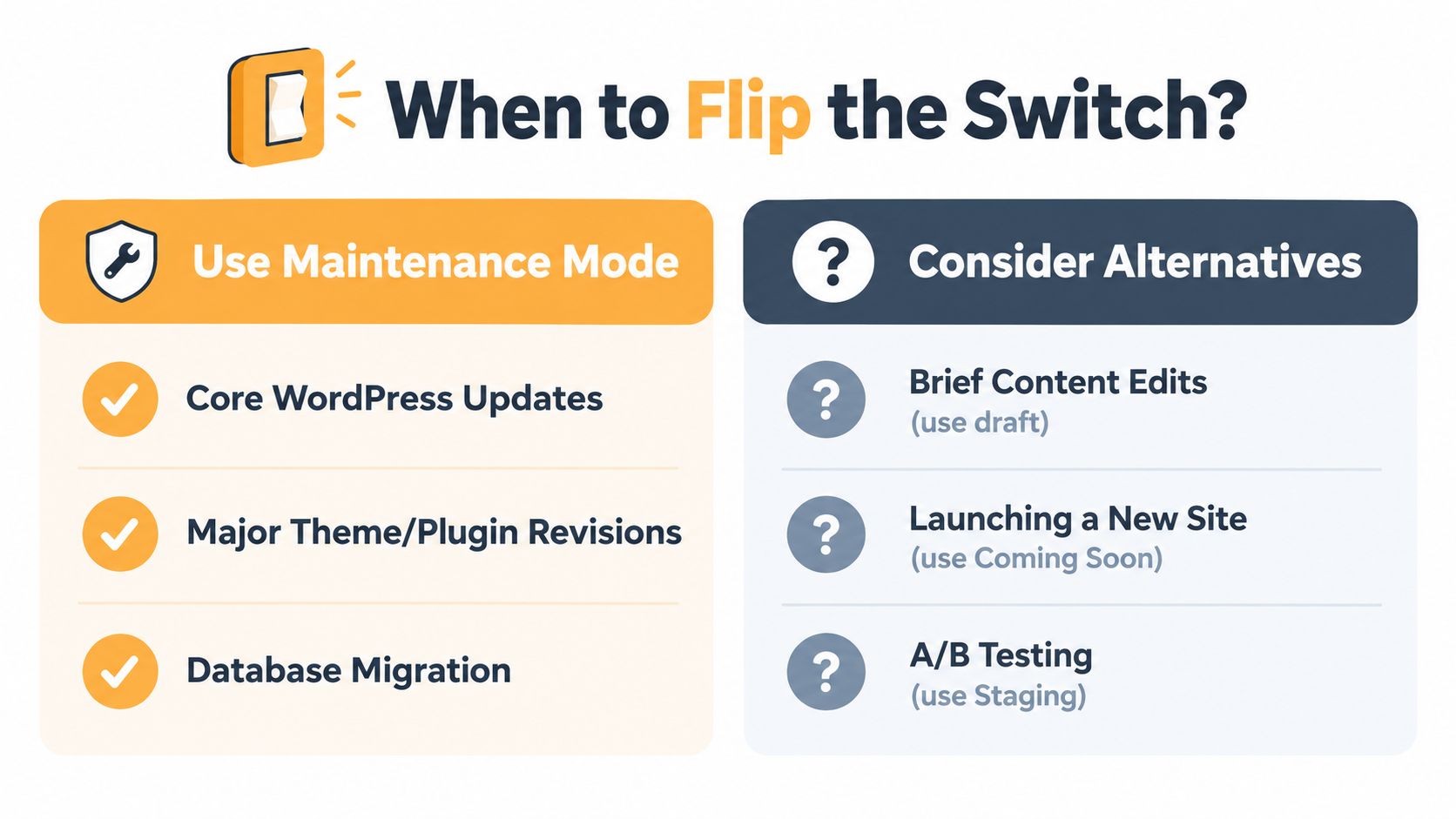
You don’t need maintenance mode for every edit. Changing a draft, correcting a paragraph, or adjusting a small setting may not justify interrupting visitors. A theme replacement, database migration, security cleanup, or major plugin revision is different because visitors could encounter incomplete or unstable work.
You also need to distinguish maintenance mode from a coming-soon page. Maintenance mode belongs to an existing site that is temporarily unavailable. A coming-soon page belongs to a site, product, or campaign that hasn’t launched yet. The message, access model, and search-engine signal should match that purpose.
Practical rule: Use maintenance mode to protect an existing site during controlled work. Use staging to test changes whenever possible, and use coming soon to build interest before a launch.
The sections ahead focus on the decisions that prevent avoidable trouble: what WordPress does behind the scenes, when downtime is justified, how HTTP status affects SEO, which implementation fits your team, and how to recover if an update leaves the site locked.
What WordPress Maintenance Mode Actually Does Behind the Scenes
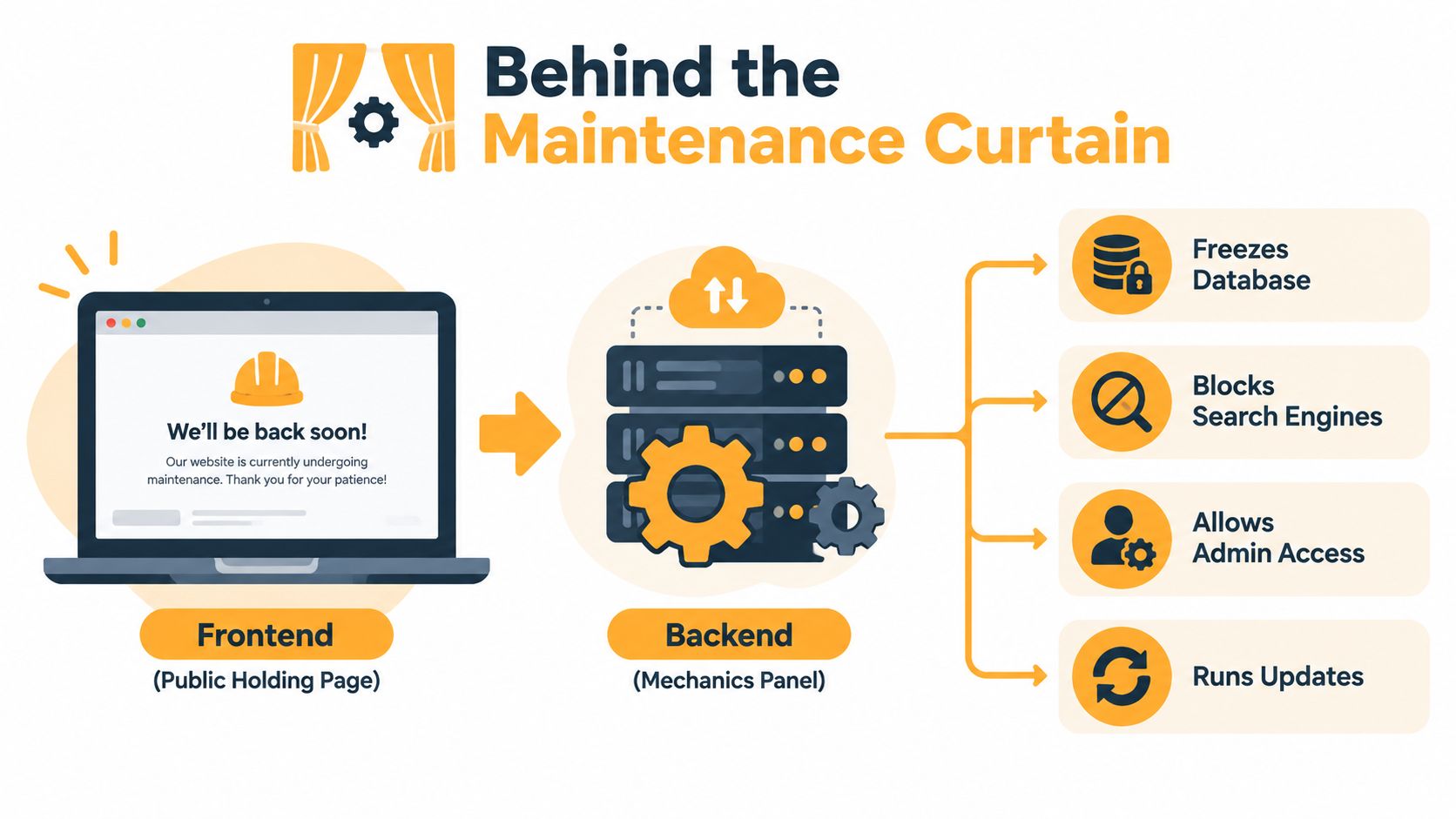
A visitor sees a holding page, but the visible page is only the front layer. Behind it, WordPress or a tool connected to WordPress decides whether a request should receive the normal site or a temporary maintenance response.
Think of the site as a shop with a renovation curtain. The public entrance leads to the maintenance notice, while the owner’s key still opens the staff entrance. Depending on the method you choose, logged-in administrators, selected roles, search crawlers, or approved visitors may receive different responses.
The core update mechanism
During a WordPress core, plugin, or theme update, WordPress creates a file named .maintenance in the site root. That file acts as a signal that an update is in progress. If the process finishes correctly, WordPress removes the file and the normal site returns.
An interrupted update can change the situation. A browser crash, server timeout, or lost connection may prevent cleanup, leaving .maintenance in place. WordPress core documentation advises administrators to delete the file from the WordPress directory through FTP when a manual upgrade fails, which confirms that this behavior belongs to the platform’s update logic rather than existing only inside a plugin. You can review the WordPress core guidance for removing a failed-update message.
Core mode isn’t the same as a designed page
The core mechanism is functional. It doesn’t automatically give you a polished, branded experience with navigation, contact options, or a carefully written explanation. Plugins add a public-facing layer that can display a custom page and apply access rules, while the newer block-theme approach lets site owners manage a Maintenance template from the Site Editor.
That distinction is important. A page that says “we’re working on it” may be visually helpful, but it doesn’t automatically guarantee that every URL is protected, that private content is inaccessible, or that search engines receive the right status. You need to evaluate the response behavior separately from the design.
When to Use Maintenance Mode and When to Skip It
Maintenance mode makes sense when visitors could see an unstable or misleading version of your site. It creates a controlled front door while your team works elsewhere, but it also interrupts browsing, purchases, form submissions, and other public interactions. The right choice depends on the risk of showing unfinished work versus the cost of temporarily limiting access.
Flip the switch for high-risk changes
Use it for work that can affect the whole front end or the integrity of the site:
- Core and extension updates: A WordPress update, plugin revision, or theme change can create conflicts that aren’t obvious until pages render.
- Large design changes: Switching themes or restructuring templates can expose inconsistent styling, missing components, or incomplete navigation.
- Database and structural work: Migrations, broad URL changes, and significant content restructuring can produce confusing results while the work is still underway.
- Security remediation: If you’re removing malicious code or correcting a serious configuration problem, don’t invite public visitors into the work area.
- Server or hosting changes: A migration or infrastructure change may require a temporary controlled response while the site is being moved.
For an ecommerce or lead-generation site, check whether the maintenance window could interrupt orders, payments, forms, or campaign traffic. A maintenance page is more responsible than showing broken checkout steps, but staging and a carefully planned deployment may reduce the public interruption further.
Keep the site live for small edits
A typo correction, draft review, image replacement, or isolated content adjustment usually doesn’t require a site-wide closure. Make the change privately, preview it, and publish when it’s ready. If only one page needs work, consider protecting that page or working on a staging copy rather than taking the entire domain offline.
A new website launch also needs a different treatment. A coming-soon page can explain what’s coming and collect interest, while maintenance mode communicates that an established site is temporarily unavailable. Don’t use the labels interchangeably, because visitors and crawlers interpret them differently.
Make the temporary signal technically correct
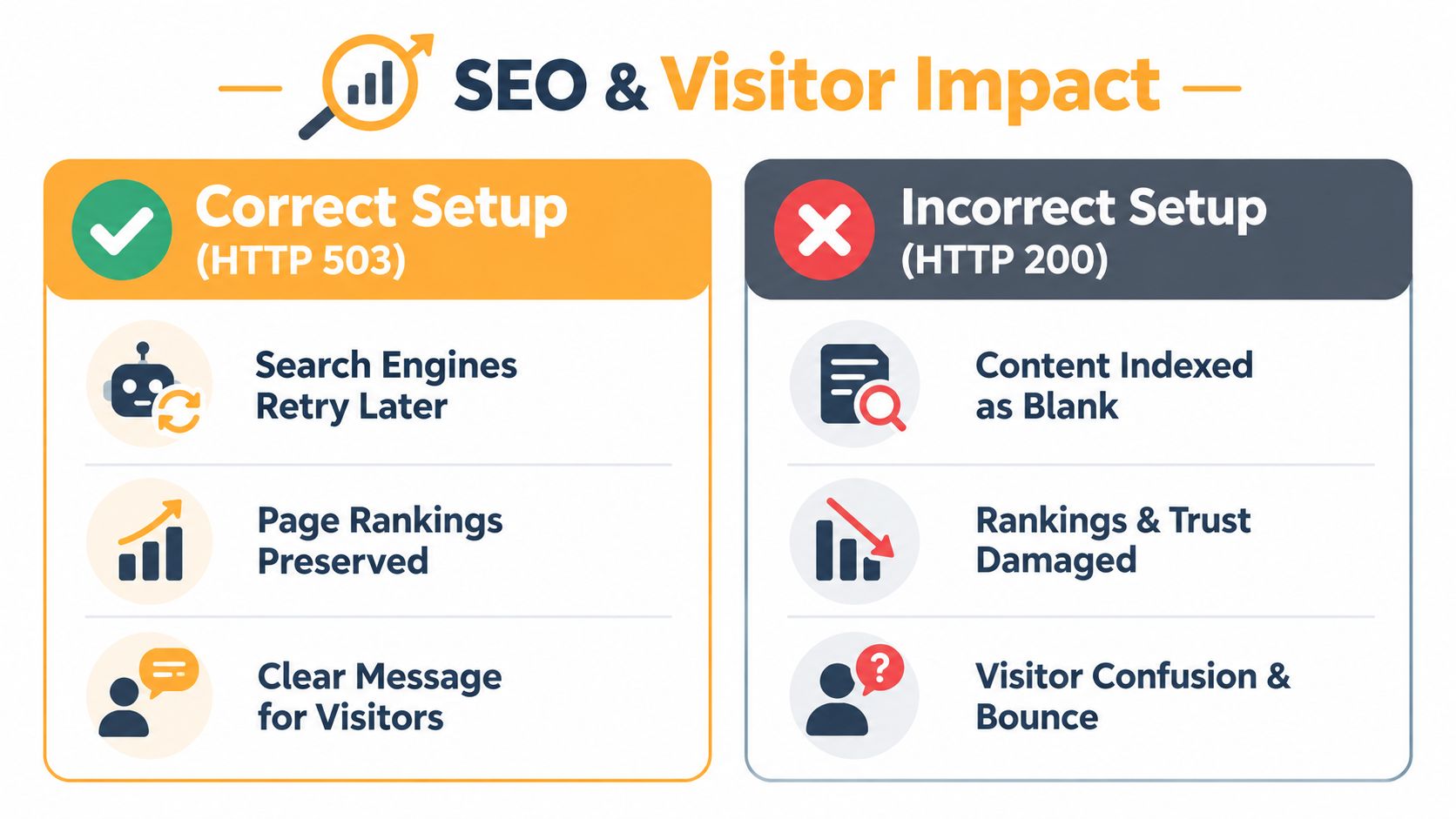
A correct maintenance implementation should return HTTP 503 Service Unavailable, not 200 OK, and include a Retry-After header. The 503 response tells crawlers and proxies that the interruption is temporary. It also reduces the chance that a placeholder page will be treated as the permanent content for your URLs, helping protect URL equity during short maintenance windows. The technical reasoning is outlined in this guide to WordPress maintenance responses and the Retry-After header.
A 200 response can make a blank or generic holding page look like a successful page to automated systems. That mismatch can create indexing and trust problems, especially if visitors or crawlers request important URLs while your normal content is unavailable.
How Maintenance Mode Affects SEO and Visitor Experience
Downtime creates two separate communication problems. Human visitors ask, “Can I use this site right now?” Search engines ask, “Is this URL temporarily unavailable, or has its content changed?” Your maintenance setup should answer both questions clearly.
Search engines need a temporary signal
The most important technical distinction is the response code. HTTP 503 Service Unavailable communicates temporary downtime, and a Retry-After header gives crawlers guidance about trying again. A maintenance page that returns 200 OK can instead resemble a normal, successful page, even when it contains no meaningful site content.
That is why the page design and server response must be treated as separate checks. A beautiful page with the wrong status can still send a poor signal. Before enabling the mode, test a representative page and confirm that logged-out visitors receive the intended response rather than assuming the plugin or theme has configured it correctly.
If speed or technical health is part of the reason you’re planning downtime, review this WordPress speed optimization service guide alongside your maintenance plan. Improving the underlying issue may let you reduce how often the public site needs to be closed.
Visitors need clarity, not a mystery screen
A useful maintenance page should answer three questions quickly:
- What happened: Explain that the site is undergoing updates, improvements, or scheduled work.
- What visitors should do: Tell them whether to return later, contact your team, use a support channel, or visit an approved page.
- What they can expect: If you know when the site should return, state that plainly. If you don’t, avoid making a promise you can’t keep.
Use your logo, familiar colors, and the same tone as the live site. A short apology can help, but don’t fill the page with technical details. For a service business, include a support or sales contact. For a content publisher, link to approved social channels or an accessible resource if those links remain useful.
A maintenance page isn’t a replacement for testing. Check it in a private browser window, on a mobile device, and with an account that should have access. Confirm that the normal site returns after the work, then clear any relevant caches and check a few important URLs.
Three Ways to Enable Maintenance Mode Compared
The three useful paths are not interchangeable. The core .maintenance file is tied to WordPress’s update process, plugins add controls and presentation, and block themes introduce a Site Editor workflow based on a Maintenance template. Your choice should reflect who manages the site, how much design control the brand needs, and how carefully you can verify the HTTP response.
The core file is a recovery and update mechanism
The .maintenance file is lightweight and sits close to WordPress itself. It’s useful when an update is underway or when you need a direct filesystem-level recovery method. It isn’t a complete design system, and site owners shouldn’t treat the existence of the file as proof that every visitor, crawler, or sensitive URL is handled exactly as intended.
Plugins prioritize convenience
A maintenance or coming-soon plugin is usually the easiest option for a non-technical team. The WordPress ecosystem shows sustained demand for this workflow. The directory lists Maintenance with 1,000,000+ active installs and 3,790,000 downloads, while another maintenance-oriented listing shows 400,000 installations and 3,790,000 downloads, as reflected in the WordPress maintenance plugin listings.
Plugins can provide visual builders, role-based access, page exclusions, messaging, and launch-page features. They also introduce another component that needs updates, testing, and security review. Don’t choose one only because its preview looks attractive. Confirm how it handles status codes, logged-in users, search crawlers, caching, and bypass behavior.
Block themes bring maintenance into the editor
For modern block-theme sites, WordPress has an on-brand workflow managed through the Site Editor. A Maintenance template can be renamed or deleted to control the maintenance state, allowing the page to use the site’s broader design language without relying entirely on a separate plugin. The WordPress developer article on on-brand maintenance mode for block themes describes this newer path.
| Method | Best For | Branding Control | SEO Handling | Skill Level |
|---|---|---|---|---|
Core .maintenance file | Update workflow and emergency recovery | Minimal | Must be verified | Technical |
| Maintenance plugin | Non-technical teams and flexible access rules | High | Depends on settings | Beginner to intermediate |
| Block-theme Maintenance template | Block-theme sites with editor-led design | High within the theme | Must be tested | Beginner to intermediate |
If your team needs WordPress development help beyond a simple switch, this guide to choosing a WordPress developer in Raleigh, NC can help frame the capabilities to look for.
Setting Up Plugins and Crafting Messages That Keep Trust
A plugin setup should begin with behavior, not decoration. Install a maintained tool from a trusted source, activate the maintenance mode setting, and identify who must continue to access the site. Admin access, logged-in access, search-bot behavior, excluded pages, and the HTTP response deserve attention before you adjust the background image.
Configure the access rules first
Work through the settings in this order:
- Set the mode to maintenance, not coming soon. Choose the option that matches an existing site undergoing temporary work.
- Allow the right team members through. Keep administrator or approved editor access available, then test it with a real account.
- Review exclusions carefully. A support page, contact route, or campaign page may need to remain accessible, but every exclusion increases the surface you need to test.
- Confirm the response behavior. The site should return 503 with Retry-After for public maintenance responses, rather than presenting a normal 200 page.
- Preview as a stranger. Use a private browser session and test the homepage, an internal page, a form, and any payment or login path that matters.
A concise message is stronger than a dramatic one. Try language such as:
For scheduled updates: “We’re making scheduled improvements to the site. Please check back after the maintenance window. Our team remains available through the support link below.”
For a redesign, explain the work without implying that something has gone wrong. For an urgent repair, be honest but calm: “We’re completing essential site work and will restore access as soon as the checks are complete.”
Don’t forget the off switch
Write down who will disable the mode and what must be tested first. After the work, browse as a logged-out visitor, submit a test form if appropriate, check key templates, and confirm that the normal pages return instead of a cached maintenance response.
If WordPress is stuck after an interrupted update, connect through FTP or the hosting file manager, open the site root, and delete the .maintenance file. WordPress core documentation identifies that file as the source of the failed-update message, so filesystem removal is often the fastest recovery step. The accompanying maintenance mode walkthrough video can provide a visual reference for the setup process.
Staying Secure and Handling Downtime Like a Pro
Maintenance mode is a traffic-management tool, not automatically a security boundary. A visitor may still reach content through an overlooked route, an excluded URL, a logged-in session, a bypass link, a cache, or a vulnerable plugin. Your team should pair the maintenance page with staging, backups, patching, and server-level controls when the work involves sensitive data or security repair.
A recent advisory for the WP Maintenance plugin describes a REST API information-exposure issue affecting versions up to 6.1.6, where unauthenticated attackers could bypass maintenance mode and access post and page content. Review the GitHub security advisory for the WP Maintenance issue, and check the exact version and remediation guidance before relying on any plugin as an access-control layer.
Treat access as a matrix
Before activation, write down who should see what:
- Public visitors: Receive the maintenance response and branded message.
- Administrators and editors: Retain only the access they need, then verify it from a separate session.
- Search crawlers: Receive the temporary status behavior you intend, without assuming that a plugin’s label guarantees it.
- Approved routes: Stay open only if there is a clear business reason, such as support or contact access.
- Sensitive work: Move to staging or apply server-level restrictions rather than relying on a front-end holding page.
Use a preflight and postflight check
Create a backup before major changes. Test the update or redesign on staging, record the current access rules, and note which URLs must remain available. During the window, monitor uptime and error logs so you can distinguish a deliberate maintenance response from a failed deployment.
Afterward, check the public site from a logged-out browser, review the homepage and important landing pages, test forms, and confirm that the maintenance setting is disabled. If your organization needs recurring updates, security work, and performance checks handled by a dedicated team, Excellorix WordPress support and management is one service option to evaluate.
The practical framework is simple: use the core file for WordPress’s update mechanism and emergency recovery, use a plugin when non-technical users need controls and flexible presentation, and use the block-theme Maintenance template when editorial branding belongs in the Site Editor. Whichever path you choose, test the response, limit access deliberately, and keep a recovery route ready.
Excellorix can help manage WordPress updates, maintenance workflows, performance tuning, and security checks so your team isn’t improvising during downtime. Visit Excellorix to discuss a safer maintenance and support process for your site.


